
Posting Video Testimonials to TikTok
The best TikTok testimonials are vertical, short, and captioned, so they make their point even with the sound off. Vocal Video's vertical templates handle all three for you, and place captions where TikTok's own buttons and text won't cover them.
💡 Note: Posting to TikTok means downloading your video, which is included on Essential, Pro, Scale and Enterprise plans.
In this article:
- Keep Vocal Video's captions on
- Start from a vertical template
- Turn an existing video vertical
- Download and post to TikTok
- Using TikTok's captions instead
- Music and TikTok sounds
Keep Vocal Video's captions on
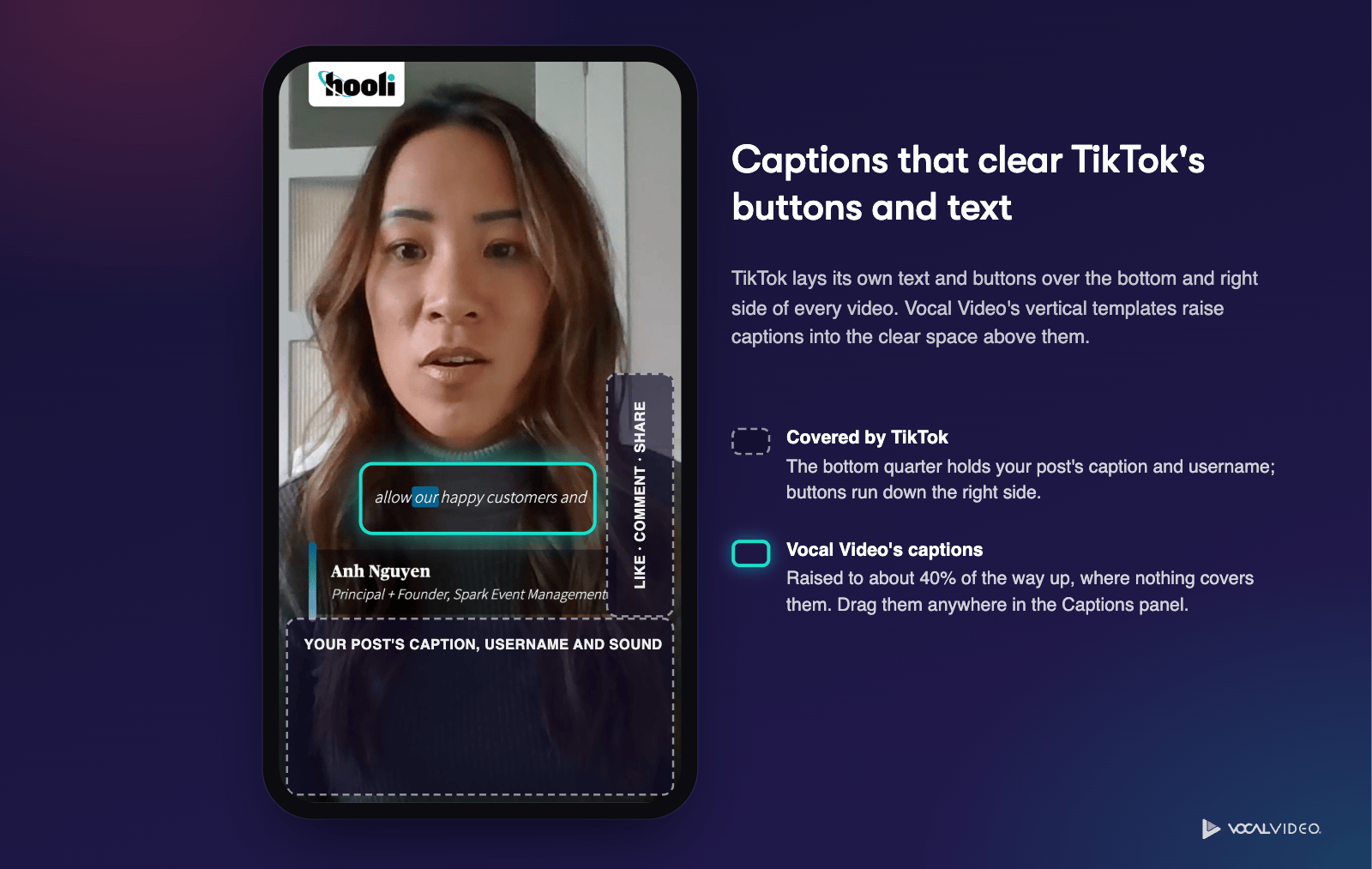
TikTok lays its own text and buttons over every video: your post's caption, username and sound along the bottom, and the like, comment and share buttons down the right side. Captions placed low in the frame end up hidden behind them.
Vocal Video's vertical templates raise captions to about 40% of the way up the frame, into the clear space above TikTok's text, and you can move them anywhere you like. So keep them on: they're styled to match your brand, and they carry your message for the many viewers who scroll with the sound off.
Start from a vertical template
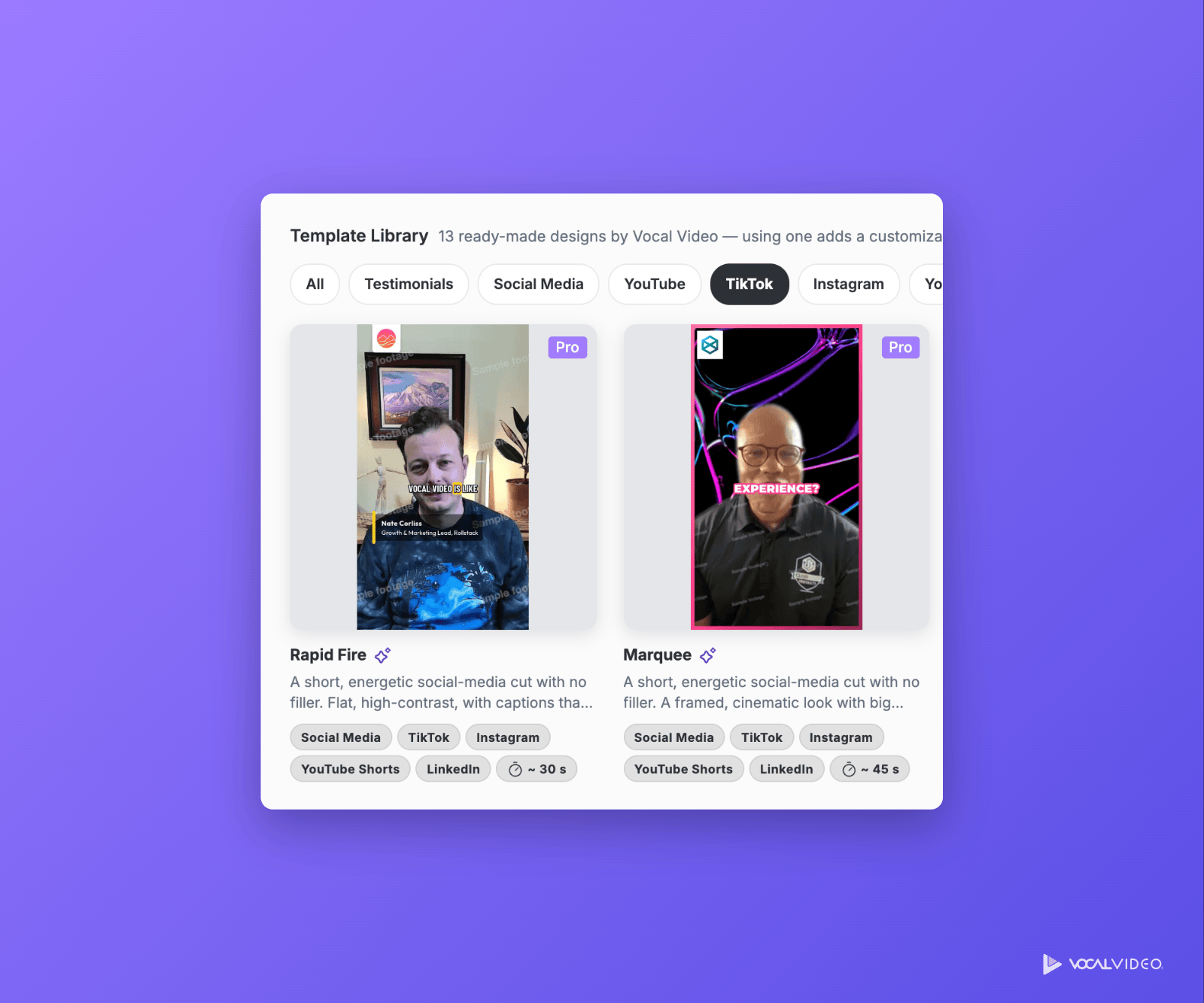
The Template Library has ready-made vertical templates built for TikTok. Each one cuts a short, energetic video with no filler, opens on the strongest line, and places captions clear of TikTok's buttons and text:
- Rapid Fire: flat and high-contrast, with captions that punch in one word at a time.
- Marquee: a framed, cinematic look with big captions that swell into place.
- Newswire: warm card styling, with captions that run across the frame like a ticker.
- Tilt: flat and graphic, with slanted captions that cut across the frame.
To find them, click Video Templates in the left menu and click the TikTok filter.
Make it yours. The ready-made templates are a starting point, and they're easy to customize. Click a template, then Customize to change its design (colors, fonts, caption style, music and logo), its length, and its editing style, which you describe in plain words in its Instructions. Turn on Use my colors to start from your brand colors. See Video Templates: the Complete Guide.

💡 Note: Rapid Fire, Marquee and Newswire use Pro design elements. On Pro, Scale and Enterprise plans you can publish them as they are; on other plans, swap the Pro font or theme before publishing. Tilt works on every plan.
Turn an existing video vertical
Already made a horizontal or square video? You can make a vertical copy for TikTok in a few clicks.
- Open the video in the editor. To keep the original as it is, duplicate it first and work on the copy.
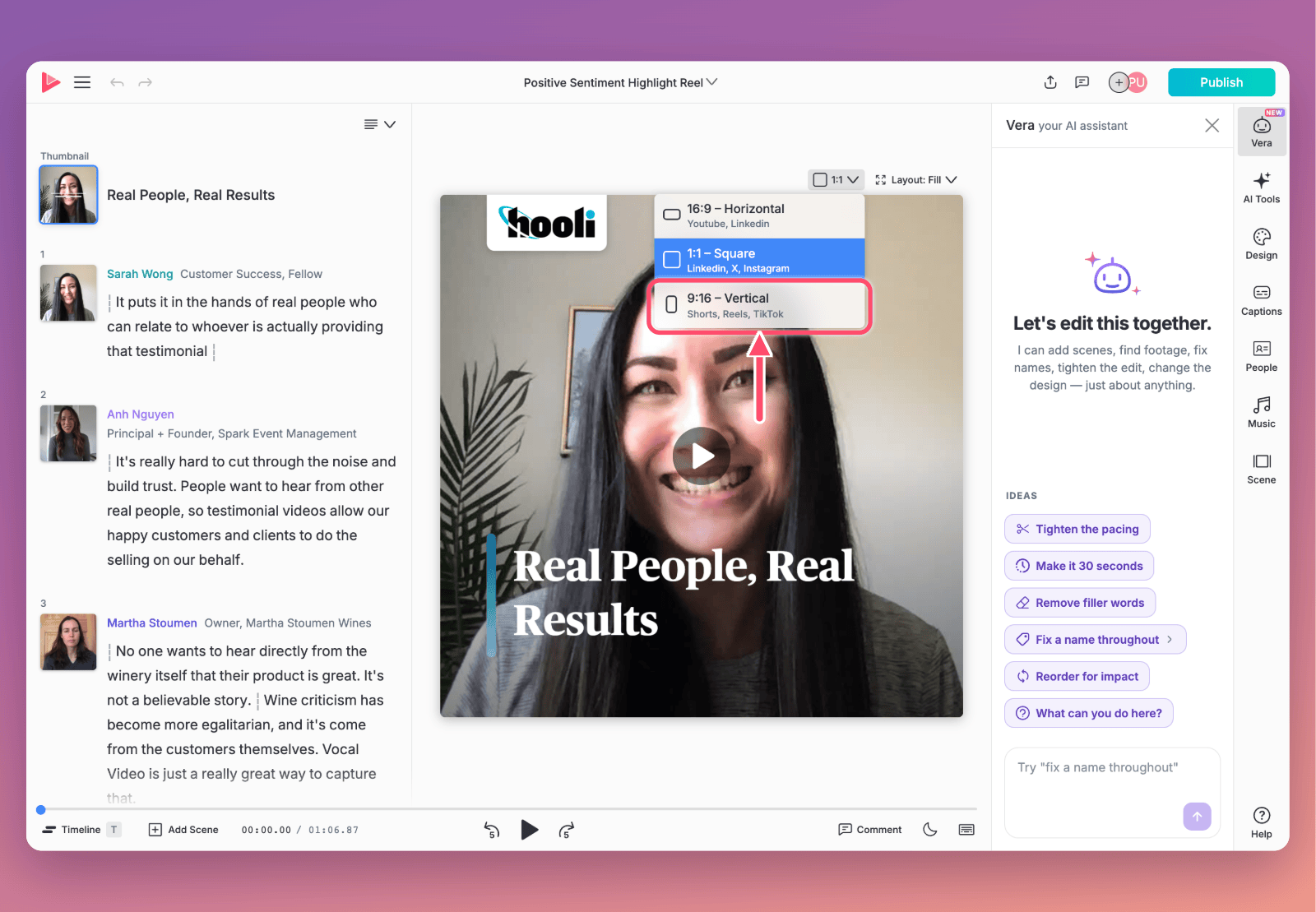
- Click the format menu above the video and choose 9:16 – Vertical.
- Check the layout menu beside it. Video Layout: Fill Frame crops footage to fill the vertical frame; Video Layout: Shrink to Fit shows all of it, with a background above and below.
Then raise the captions clear of TikTok's text:
- Click Captions in the right sidebar, then the Customize tab.
- Open Size & Position and drag the caption bar up to about 40%.
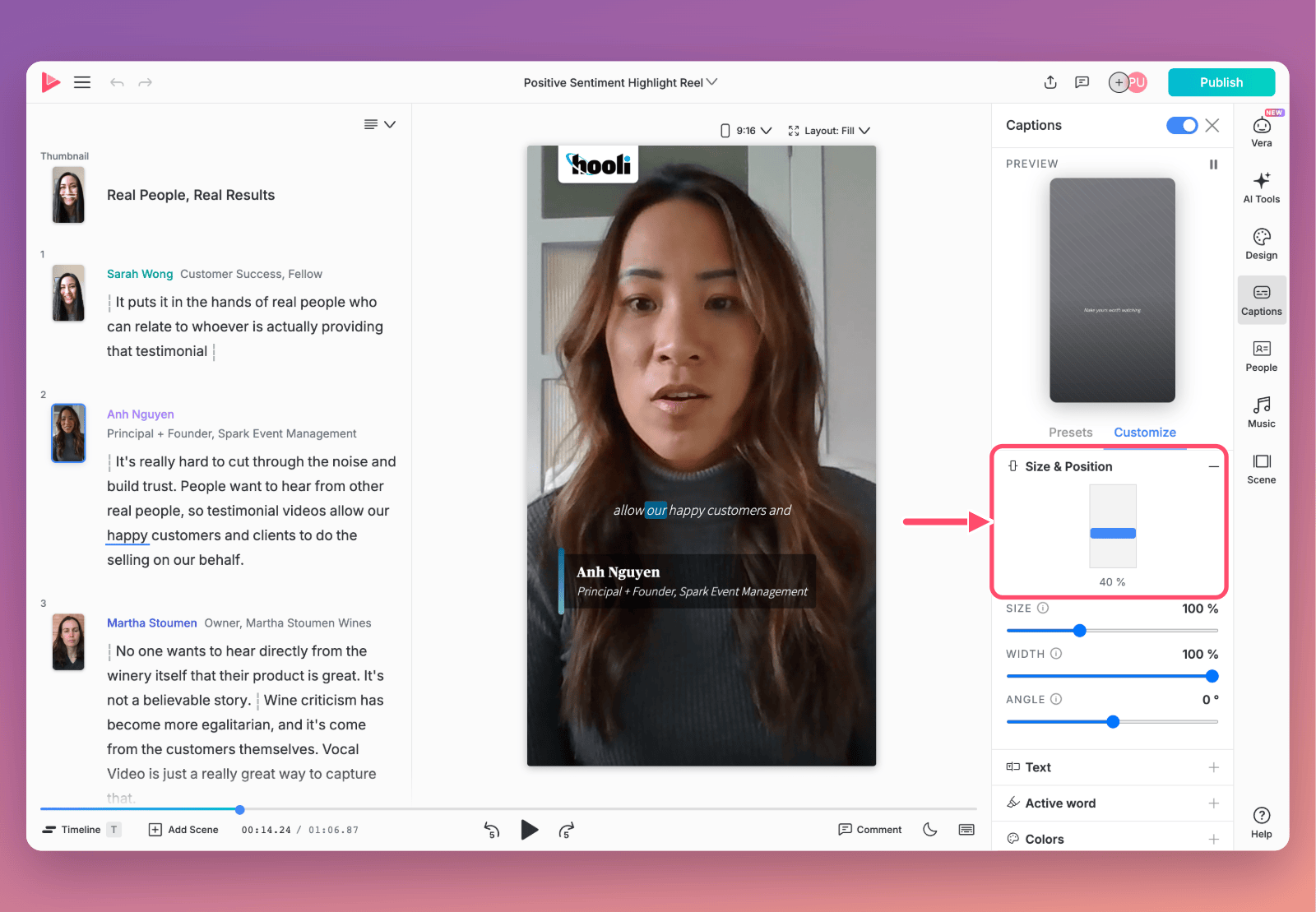
While you're in the Captions panel, you can also pick a bolder style on the Presets tab, or adjust size, colors and motion on Customize.
Keep it short, too. TikTok viewers decide in the first few seconds, so open on your customer's strongest line and trim anything that doesn't earn its place. Vertical templates do this for you.
Download and post to TikTok
- Publish your video, then click Download.
- Click Download Video File. To use your Vocal Video thumbnail as the TikTok cover, click Thumbnail too.
- Upload the video in the TikTok app or at tiktok.com, and write your post's caption.
- Choose a cover. TikTok calls the thumbnail a cover; pick a frame from the video, or upload the thumbnail you downloaded.

For more on downloading, see How to Download Your Videos and Raw Responses from Vocal Video.
Using TikTok's captions instead
Most videos are best posted with Vocal Video's captions. If you'd rather use TikTok's own auto-generated captions, for example to match the look of the rest of your TikTok feed, turn Vocal Video's off before you publish, so the video doesn't carry two sets:
- Duplicate the video, so you keep a captioned version for everywhere else.
- In the copy, open Captions and switch captions off with the toggle at the top of the panel.
- Publish and download the copy, then turn on captions in TikTok as you post.
Music and TikTok sounds
Your video's soundtrack comes along when you download it. To use a TikTok sound instead, remove the music first: open Music in the right sidebar and click Remove, then add a sound in TikTok as you post.
When you post a Vocal Video testimonial, tag @vocalvideoinc on TikTok and we'll reshare it!
For more information see:
- Video Templates: the Complete Guide
- Posting Video Testimonials to Instagram Reels and Stories
- Posting Video Testimonials to LinkedIn
- Posting Video Testimonials to YouTube
- Posting Video Testimonials to Facebook
- How to Change Video Format
- How to Share and Embed Videos
Still need help? Contact Support at support@vocalvideo.com