
Adding Vocal Video Embed Codes to Your Site
This guide explains how to copy a Vocal Video embed code and add it to your website, blog, landing page, or CMS.
A Vocal Video embed code is an HTML snippet you paste into your site. It includes the responsive video player and metadata that helps search engines understand the video content.
In this article:
- Copy an Embed Code from Vocal Video
- Customize an Embed
- Where to Paste the Embed Code
- WordPress
- Squarespace
- Wix
- Webflow
- Shopify
- HubSpot
- Leadpages
- ConvertKit
- Ghost
- Other Platforms
- After You Embed a Video
Copy an Embed Code from Vocal Video
- In Vocal Video, open Videos.
- Select the published video you want to embed.
- Click Share.
- Open the Embed tab.
- Click Copy Embed Code for the standard embed, or click Customize to adjust the embed before copying.
- Paste the embed code into your website where you want the video to appear.
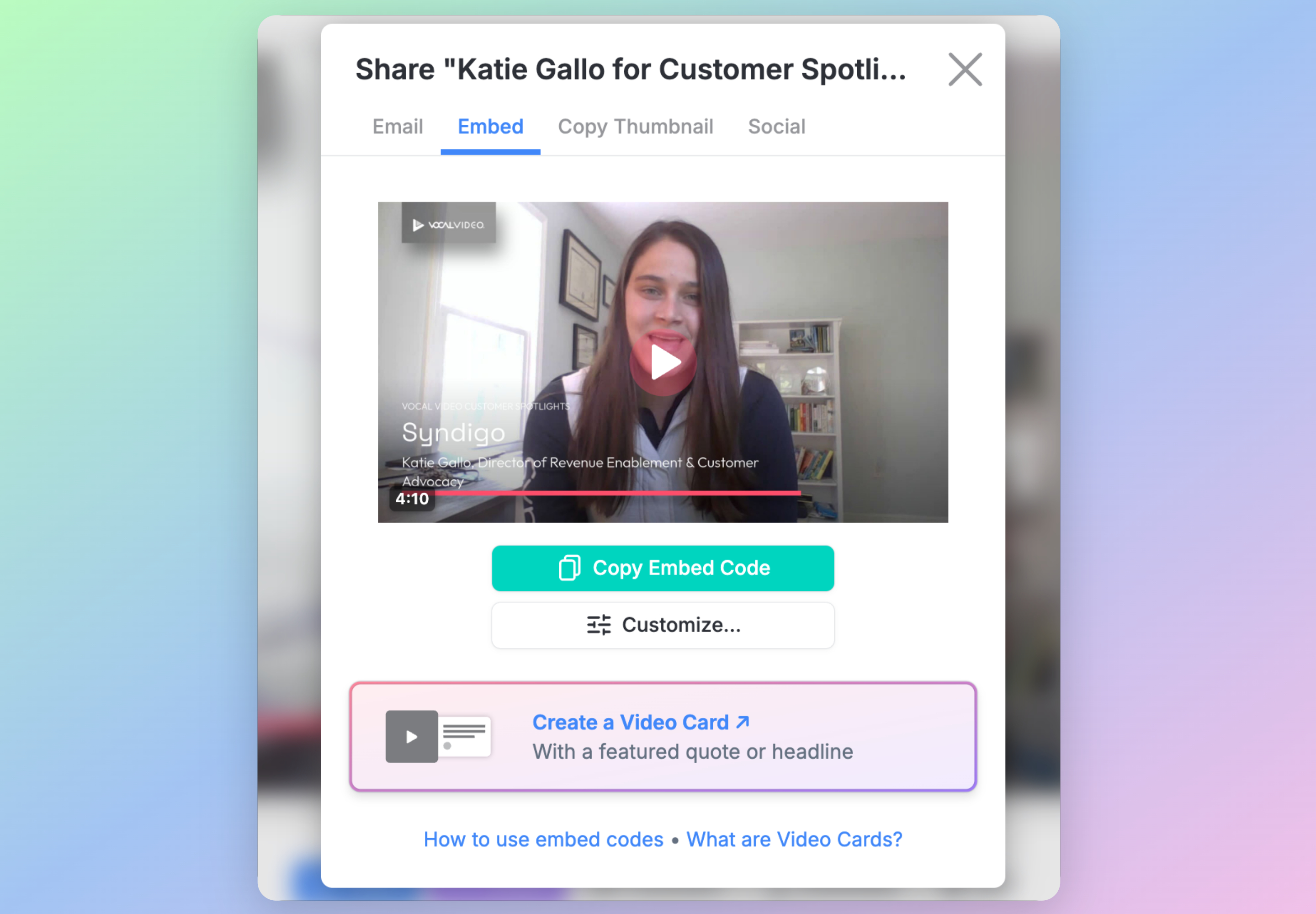
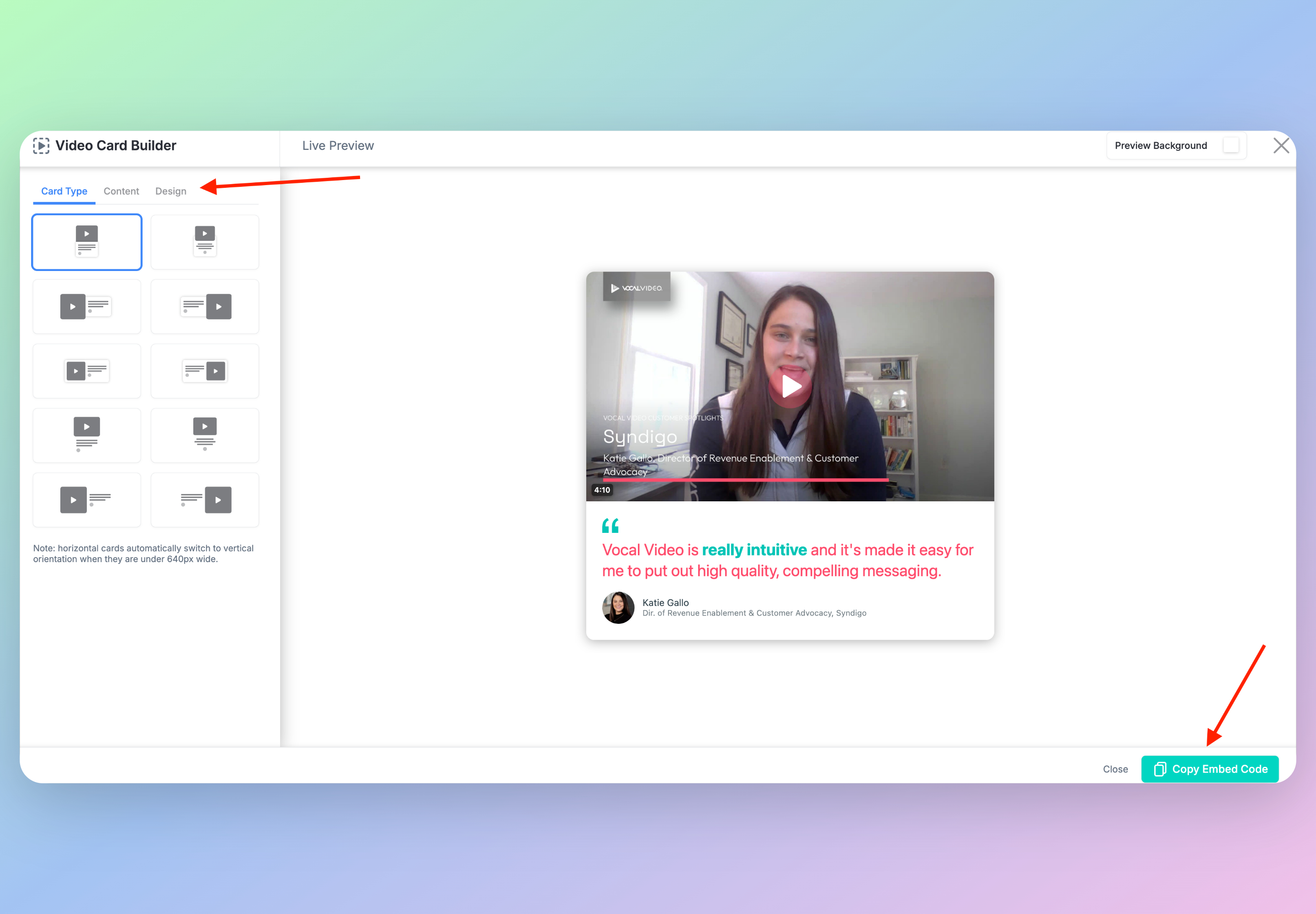
You can also create a Video Card from the Embed tab if you want a richer testimonial preview with a quote and attribution. For the broader sharing workflow, see How to Share and Embed Videos.
Customize an Embed
Use Customize in the Embed tab to open the Video Embed Builder. From there you can adjust the embedded player's appearance and behavior before copying the code.
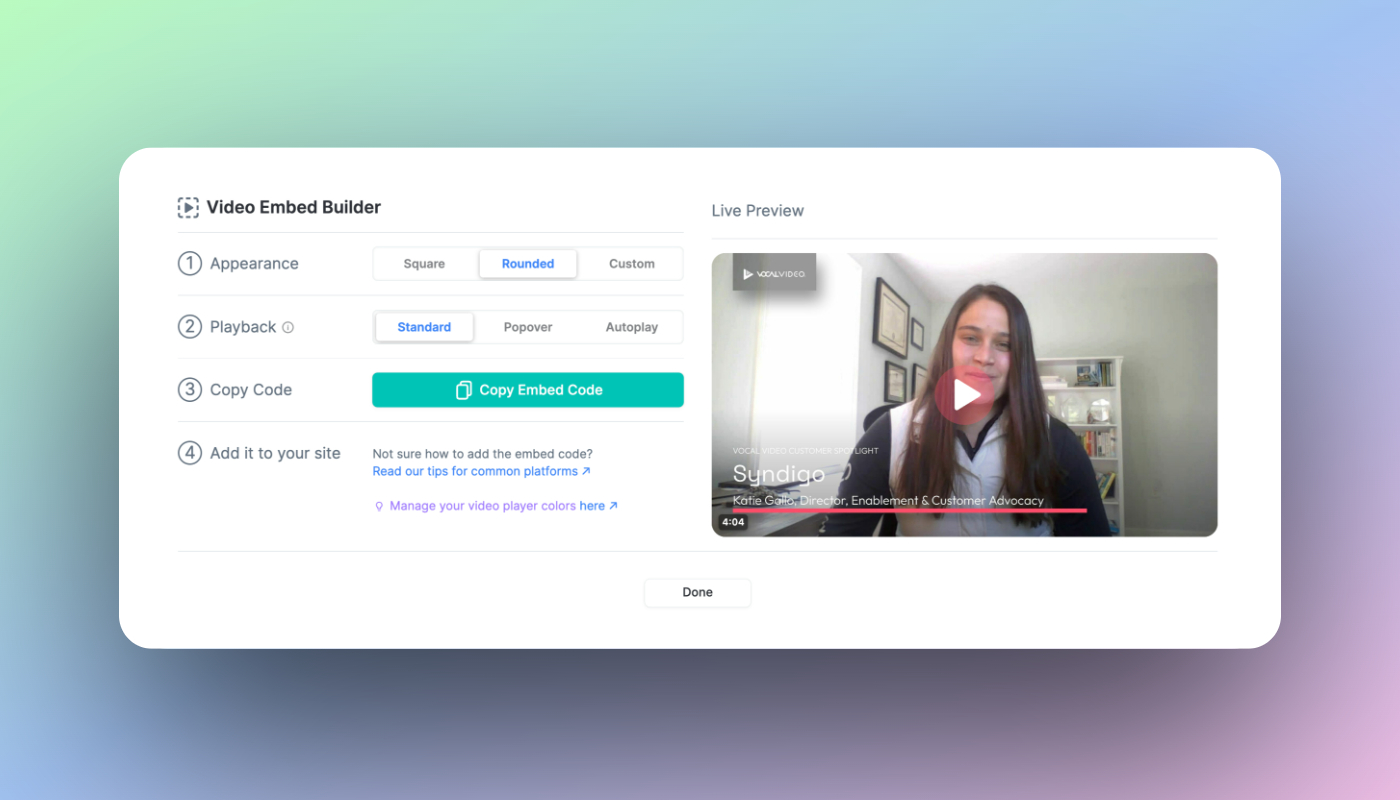
Click on the link to manage your video player colors in Video Player Settings.
Use the live preview to check the result, then click Copy Embed Code.
To compare embed styles, see What do Video Embeds Look Like?.
Where to Paste the Embed Code
Because the embed code is HTML, you need to paste it into an area of your website or CMS that accepts custom HTML. The exact steps depend on the platform you use.
WordPress
If you use self-hosted WordPress or managed WordPress hosting, add a Custom HTML block and paste the Vocal Video embed code into that block.

WordPress.com may restrict iframes in some plans. If your embed does not display on WordPress.com, contact WordPress support or reach out to us at support@vocalvideo.com.

Squarespace
In Squarespace, add a Code Block to the page and paste the Vocal Video embed code into the block.

Wix
In Wix, add a custom HTML element or embed element, then paste the Vocal Video embed code into that element.


Webflow
In Webflow, add an Embed element where you want the video to appear, then paste the Vocal Video embed code into the element.

Shopify
You can add Vocal Video embeds to Shopify themes, product pages, content pages, or blog posts.
- To add a video to a theme, edit the appropriate Liquid template and paste the embed code where you want the video to appear.
- To add a video to a page, blog post, or product description, open the editor's HTML/source view and paste the embed code there.


HubSpot
In HubSpot, add the embed code through a rich text module or an HTML/embed option, depending on the page type and editor you are using.

For the most predictable results, use HubSpot's option to embed external media with an embed code.

Leadpages
In Leadpages, paste the Vocal Video embed code into an HTML widget.

ConvertKit
In ConvertKit, paste the Vocal Video embed code into an HTML block on your landing page or form.

Ghost
In Ghost, paste the Vocal Video embed code into an HTML block in the post or page editor.


Other Platforms
If your platform is not listed here, look for an option to add custom HTML, embed code, iframe code, or a code block. Most website builders and content management systems support this.
If you have questions, contact us at support@vocalvideo.com.
After You Embed a Video
Embedded Vocal Videos update automatically when you edit and republish the video in Vocal Video. You do not need to replace the embed code after every video edit.
If you want to measure engagement from embedded videos, see How to Capture Analytics with Vocal Video Embeds. For SEO-related settings, see Video Visibility & SEO Settings and How Our Video SEO Features Can Boost Your Rankings.
When you embed your videos publicly, tag @vocalvideo on social media or send us the page. We love seeing where customers use their videos.