
Webhooks: Get Notified When a Response Arrives or a Video Is Published
Webhooks let Vocal Video tell your own system the moment someone submits a video collector response or a video is published, so your app can act on it right away.
Webhooks are one small piece of what you can connect. To read your data, create videos or send video requests, use our API or connect an AI assistant: Integrations and Automation: the Complete Guide compares every option. And if you'd rather not write code, Zapier's Vocal Video triggers are these same two events; see Automating Vocal Video with Zapier.
💡 Note: Webhooks are included on Pro, Scale and Enterprise plans.
In this article:
How webhooks work
You register a URL on your server for one of two events. When the event happens, Vocal Video sends an HTTP POST to that URL with a JSON description of it.
- New response: someone submits a response to one of your video collectors. You can limit a webhook to a single collector.
- Published video: a video is published in your workspace.
Webhooks only announce these two events. When your handler needs anything more, it can call the API with the same key.
A coding agent can set this up for you. Give Claude Code, Cursor or another coding agent this article and the URL of your endpoint, and ask it to register the webhook and write the handler.
Set up a webhook
1. Create an API key
- Go to Settings > API Keys and click Create key.
- Give the key a name that says what it's for, like the integration that will use it.
- Choose Read/Write. Registering and stopping webhooks needs it; a Read only key gets a 403 error.
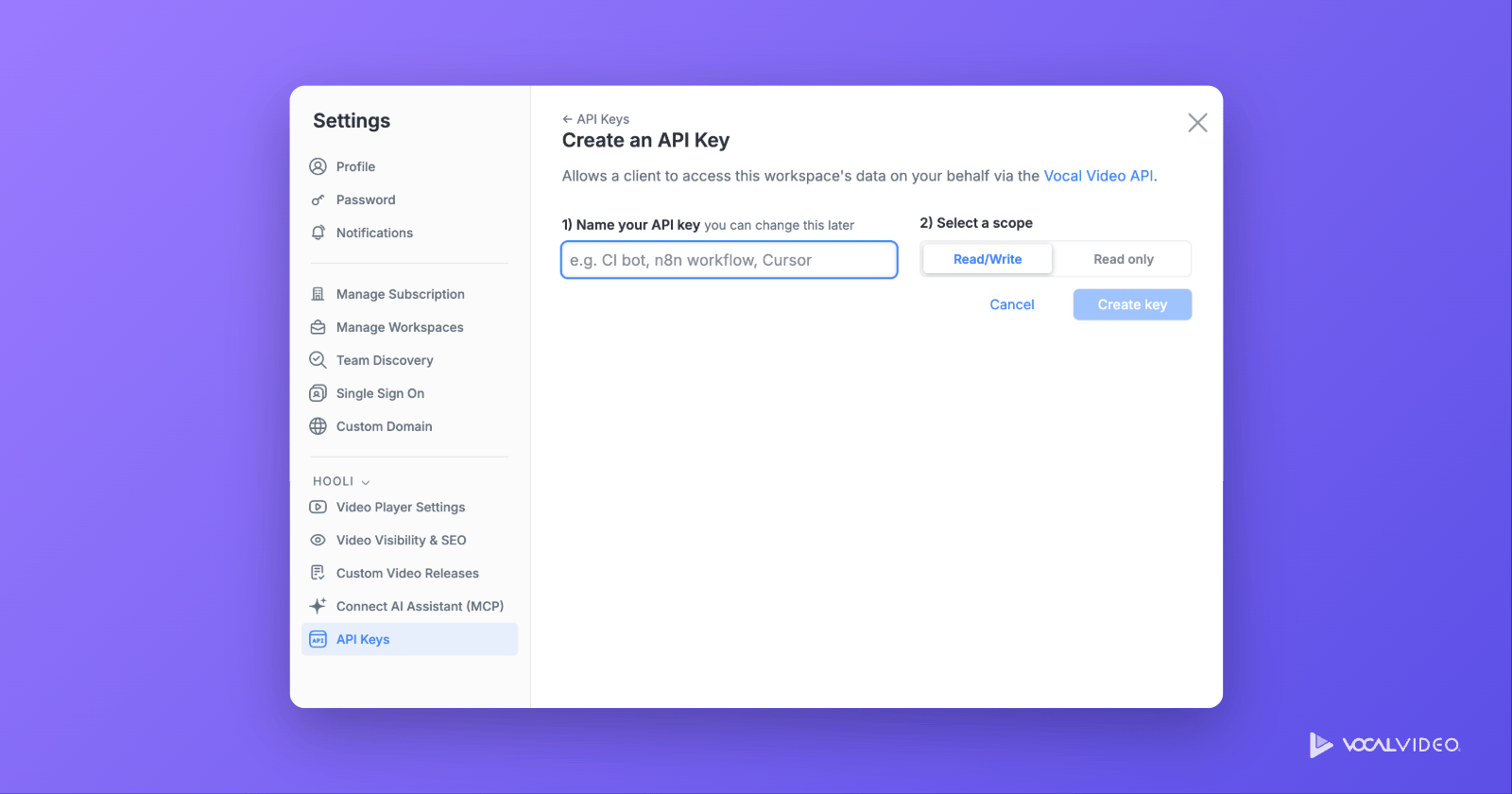
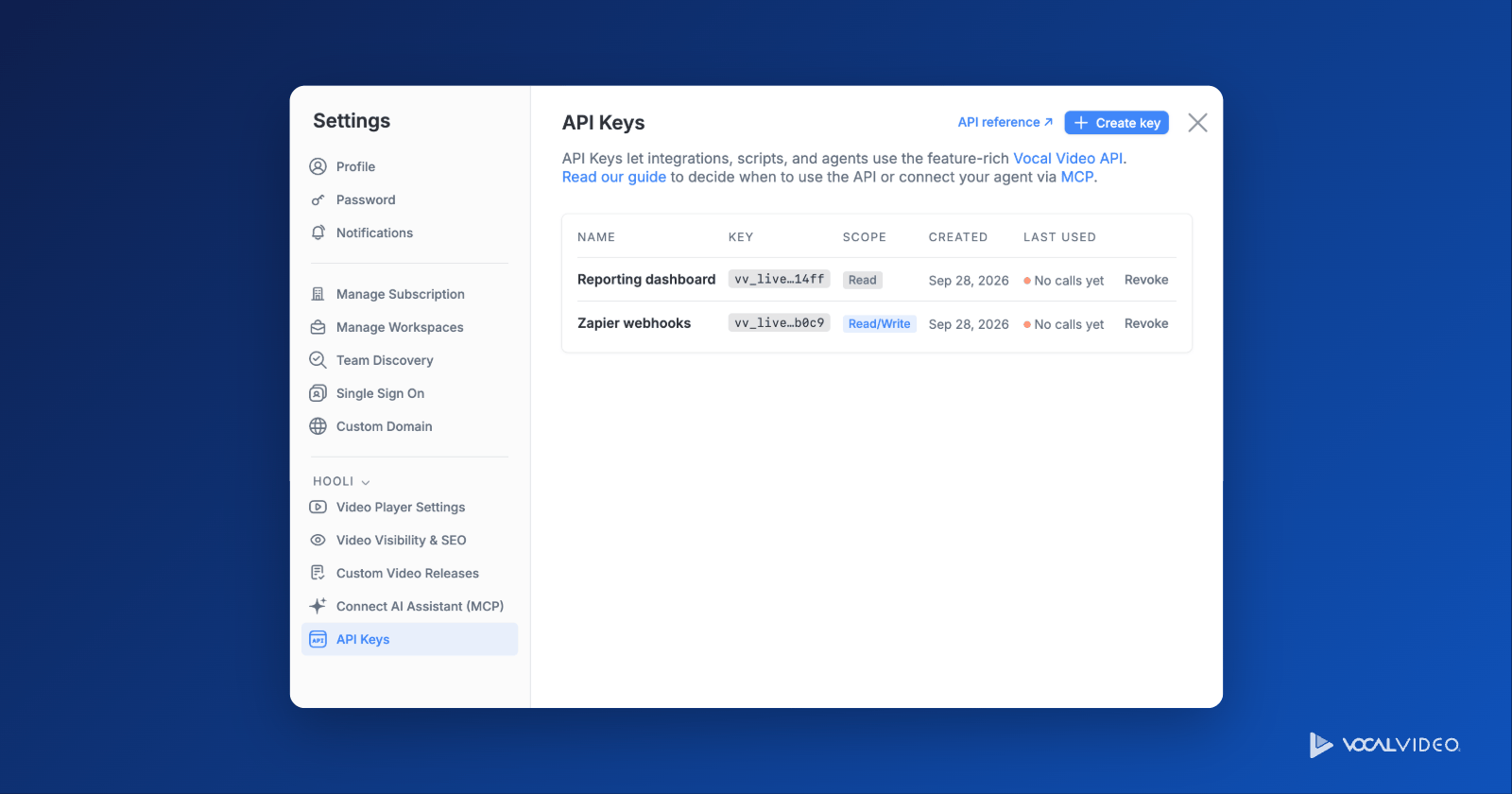
Keys belong to your workspace, and you need an editor role or higher to create them. Your keys are listed on the same page, where you can reveal one again later. Keys created before September 2026 appear under Legacy keys and still work.
2. Check your key
Send a GET request to the account endpoint, with your key as the api_key parameter:
curl -X GET https://vocalvideo.com/api/v1/account -d api_key=YOUR_KEY
You'll get back your account and user name:
{"account":"Your Account","user":"Your Name"}
3. Preview the payloads
Before you register anything, you can see exactly what your handler will receive. These requests return your three most recent responses and published videos, in the same format webhooks send:
curl -X GET https://vocalvideo.com/api/v1/replies -d api_key=YOUR_KEY
curl -X GET https://vocalvideo.com/api/v1/storyboards -d api_key=YOUR_KEY
4. Register your webhook
Send a POST request to /subscribe on replies (new responses) or storyboards (published videos), with your URL in the zap[url] parameter:
curl -X POST https://vocalvideo.com/api/v1/replies/subscribe -d api_key=YOUR_KEY -d 'zap[url]=https://yourdomain.com/some/path'
To hear about responses to just one collector, add -d collector_id=COLLECTOR_ID .
Vocal Video replies with the webhook's ID. Keep it: you'll need it to stop the webhook.
{"id":123}
5. Handle the callback
From now on, each new response (or published video) arrives at your URL as a POST with a JSON body, described in the payload reference below. Some fields only appear when they apply, so build your handler to cope when one is missing.
Stop a webhook
Send a DELETE request to /unsubscribe , with the webhook's ID as zap_id :
curl -X DELETE https://vocalvideo.com/api/v1/replies/unsubscribe -d api_key=YOUR_KEY -d zap_id=123
A successful request returns HTTP 200 with no body. Your endpoint can also stop a webhook itself: if it answers a callback with HTTP 410, Vocal Video removes that webhook straight away.
Payload reference
All dates are in ISO 8601 format.
New response
{
  "id": 1,
  "collector": { "id": 1, "nickname": "Customer Evidence", "slug": "customer-evidence" },
  "company_name": "Doe, Co.",
  "created_at": "2026-08-01T06:50:30-05:00",
  "email": "jane@doe.com",
  "first_name": "Jane",
  "job_title": "Marketing Manager",
  "last_name": "Doe",
  "name": "Jane Doe",
  "release_agreed": true,
  "custom_1": "Custom Field 1",
  "custom_2": "Custom Field 2",
  "custom_3": "Custom Field 3",
  "responses": [
    {
      "id": 1,
      "prompt": "Question 1",
      "clips": [
        {
          "id": 1,
          "format": "video",
          "transcript": "What the respondent said…",
          "thumbnail": "https://…",
          "width": 1920,
          "height": 1080,
          "url": "https://…"
        }
      ]
    }
  ],
  "url": "https://vocalvideo.com/app/…"
}
- release_agreed appears only when the collector uses a custom video release.
- custom_1 to custom_3 are your custom respondent fields.
- A clip's thumbnail, width, height and url appear once its media has finished processing. Audio clips have no width or height.
- The top-level url opens the response in Vocal Video.
Published video
{
  "id": 1,
  "title": "Public title",
  "internal_title": "An internal title",
  "description": "A new video",
  "slug": "slug",
  "visibility": "public",
  "public_url": "https://vocalvideo.com/v/slug",
  "app_url": "https://vocalvideo.com/app/…",
  "published_at": "2026-08-01T06:50:30-05:00",
  "render_count": 1,
  "width": 1080,
  "height": 1080,
  "thumbnail": "https://…",
  "transcript": "The words spoken in the video…",
  "video_original": { "url": "https://…" },
  "creator": { "id": 1, "name": "Jane Doe" },
  "replies": [
    {
      "id": 1,
      "collector": { "id": 2, "nickname": "Nickname", "slug": "collector-slug" },
      "company_name": "Company",
      "created_at": "2026-08-01T06:50:30-05:00",
      "email": "test@email.co",
      "first_name": "Jane",
      "job_title": "CEO",
      "last_name": "Doe",
      "name": "Jane Doe",
      "url": "https://vocalvideo.com/app/…"
    }
  ]
}
replies lists the responses used in the video, with the same respondent fields as a new-response payload.
For more information see:
- Integrations and Automation: the Complete Guide
- Automating Vocal Video with Zapier
- Vocal Video developer docs
Still need help? Contact Support at support@vocalvideo.com