
Video Cards and Featured Quotes
A video card puts one of your videos beside its strongest line, with the speaker's name, title and photo, so visitors get the message before they press play. You design it in the Video Card Builder and paste it on your site like any other embed.
In this article:
- When to use a video card
- Choose a featured quote
- Build a video card
- Card Type
- Content
- Design
- Changing a card later
When to use a video card
Use a card instead of a plain video embed when the words matter as much as the video: a testimonial section on a pricing page, a customer quote beside a sign-up form, a case study sidebar. Many visitors read the quote and move on without playing anything, and the card still makes its point.
Fluid IT places video cards right inside an article, next to the topic each customer talks about:
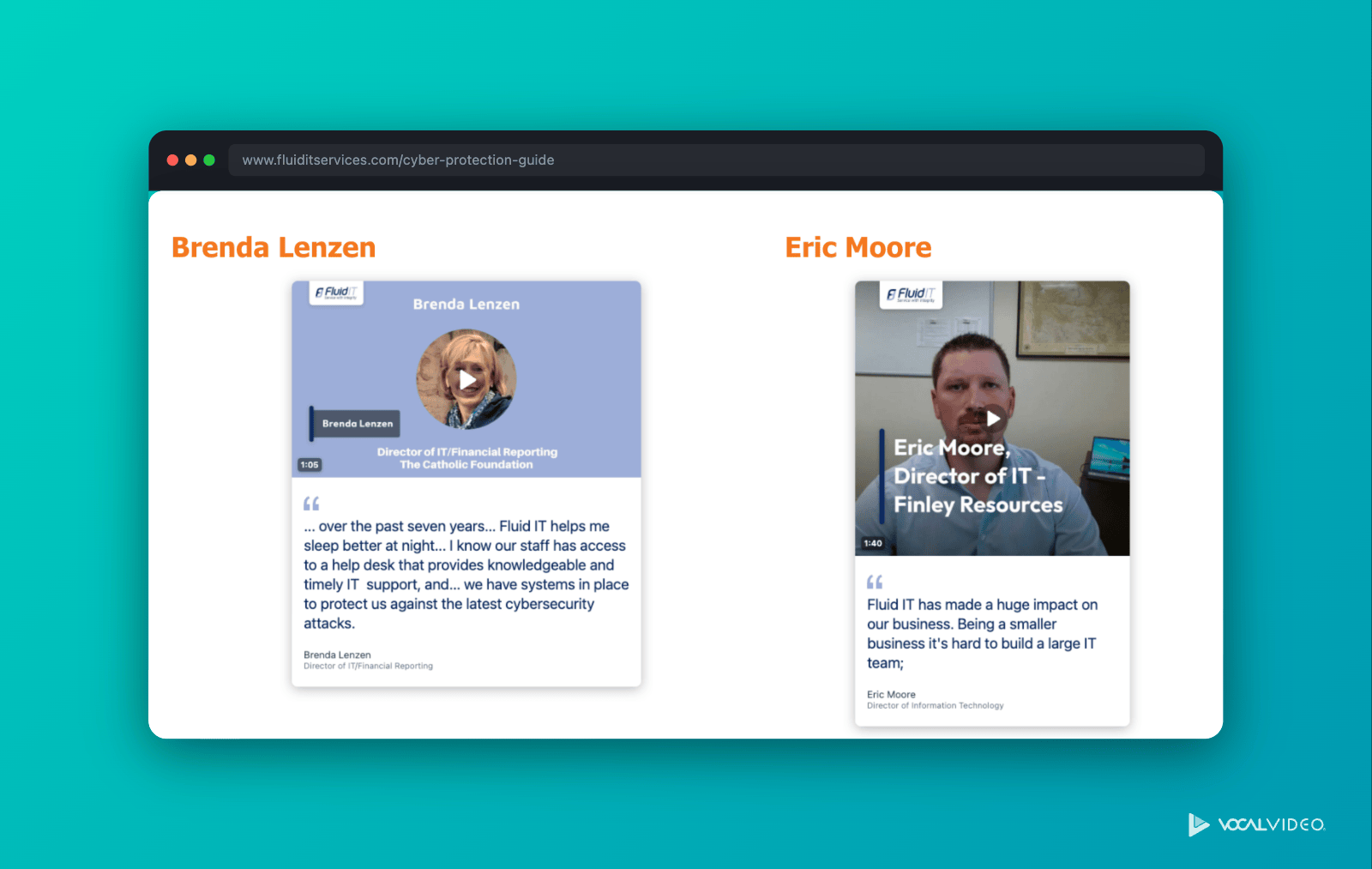
For several videos in one place, use a video gallery instead. Galleries use the same featured quotes and card styles. To compare all three ways to embed, see Which embed should I use?
Choosing a featured quote
Every published video has one featured quote: a short line from the video, shown next to it in video cards and galleries. Set it once, and every card and gallery that shows the video uses it.
The easiest time to set it is while your video publishes:
- Publish your video. While it renders, the publishing screen asks you to check your video details and featured quote.
- Click Featured Quote.
- Under Available Quotes To Use, find a line from the transcript you like, then copy and paste it into the Featured Quote field. Trim it for length if you need to, keeping it true to what the speaker meant.
- Check the speaker's Name and Title, and upload a photo if you'd like one.
- Click Save Changes.
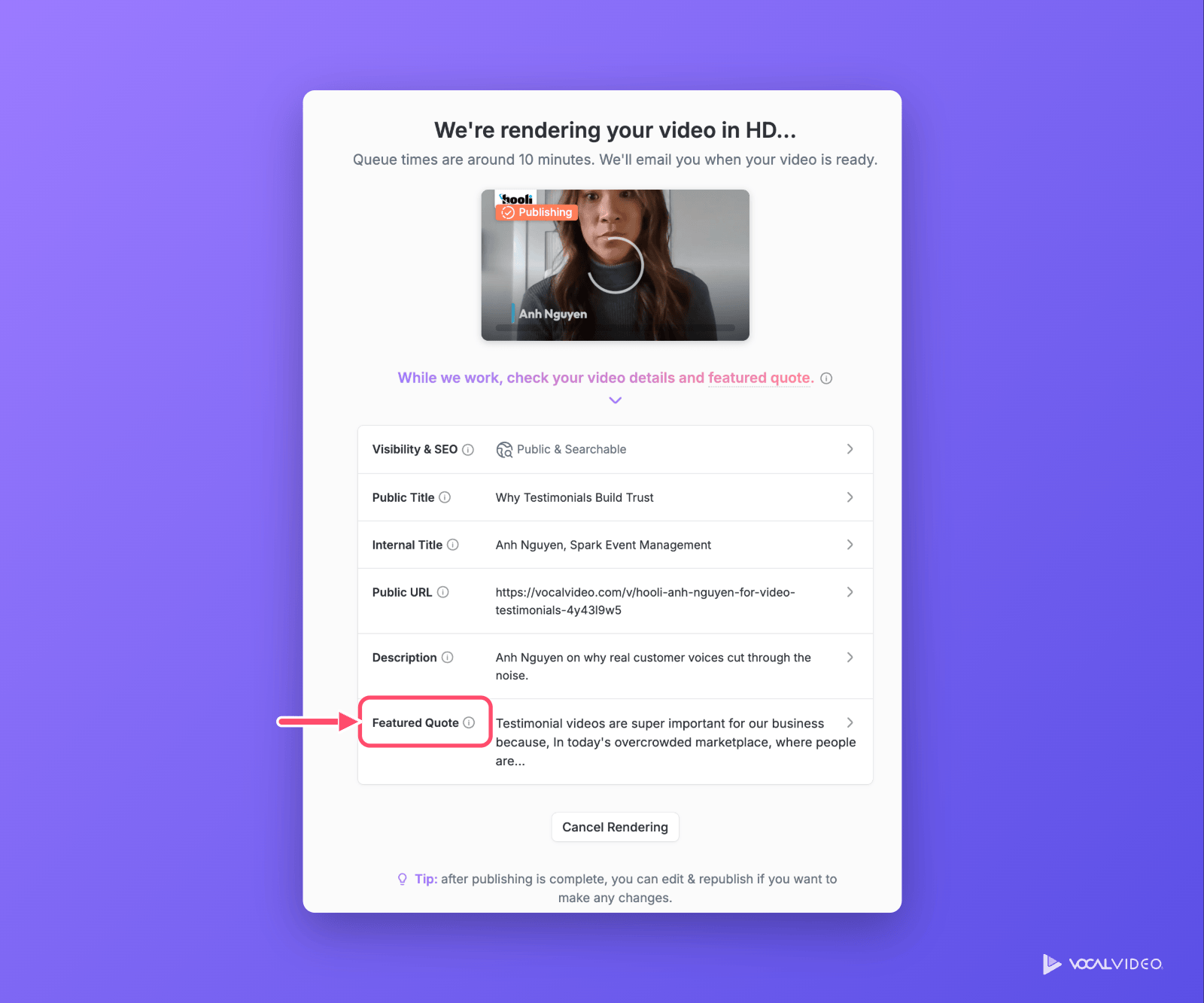
Bold the words that matter most. Bold text in a featured quote shows in the card's accent color, like "from just a few to over a dozen" in the example above.
To add or change it later, open the published video and click Add (or Edit) next to Featured Quote.
Building a video card
- Open the published video.
- Click Share, then open the Embed tab.
- Click Create a Video Card.
- Work through the Card Type, Content and Design tabs. The Live Preview updates as you go.
- Click Copy Embed Code and paste it into your site. See Where to Paste Embed Codes.
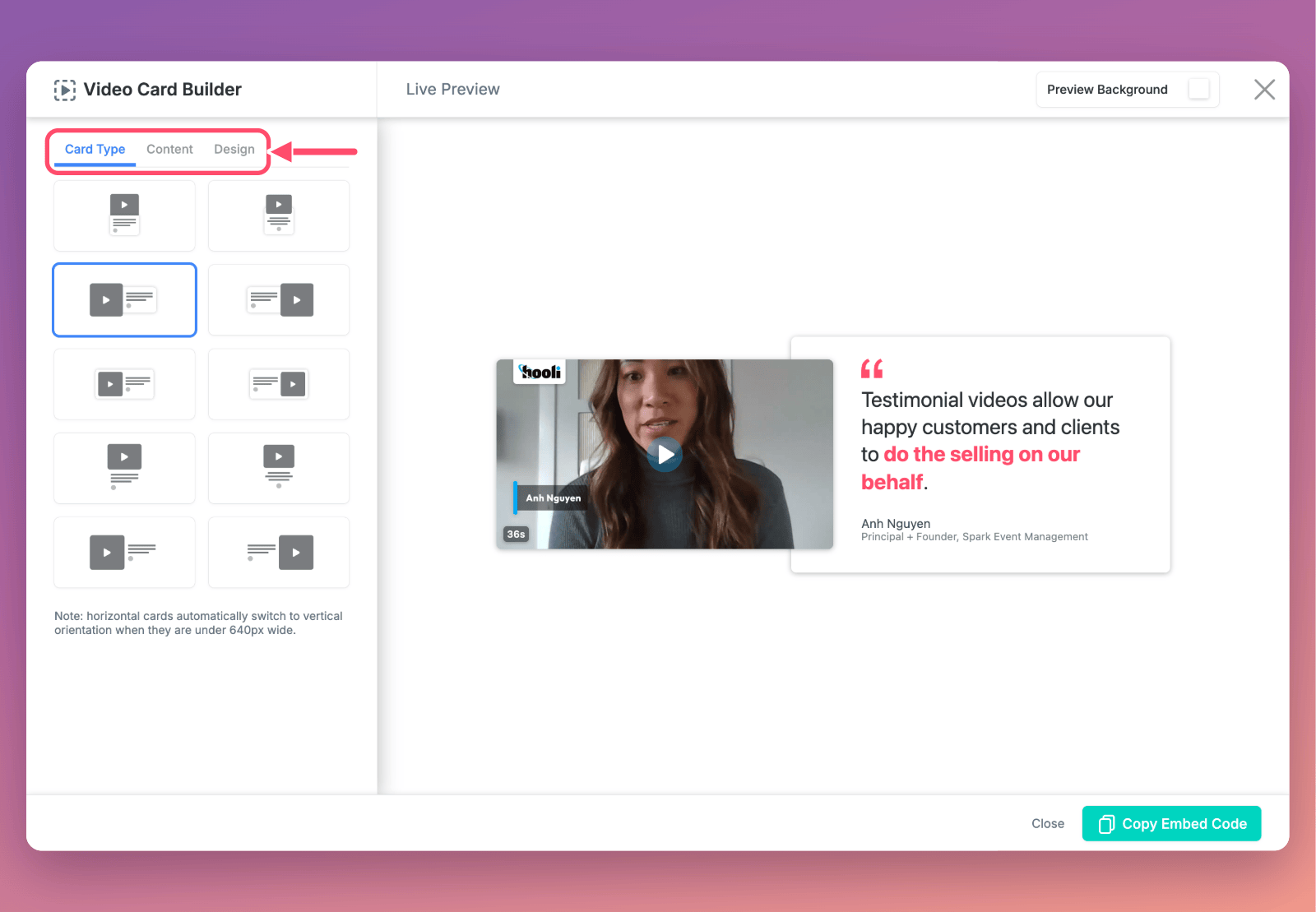
Preview it on your own colors. Set Preview Background at the top of the builder to your website's background color to see the card as visitors will.
Card Types
Card types define the design of how the featured quote is frame, and also where the quote sits relative to the video:
- Vertical cards put the quote below the video, left-aligned or centered. They suit narrow spaces like sidebars and columns. The card at the top of the sharing guide is one.
- Horizontal cards put the video on the left or right of the quote, either beside it or overlapping it (inset). They suit full-width page sections.
- Transparent cards drop the card background, so the quote sits directly on your page.
Horizontal cards automatically switch to a vertical layout when they're less than 640 pixels wide, so they still work on phones.
Here's an inset card, with the video overlapping the quote:
Customizing the Card Content
Choose what goes beside the video:
- Featured Quote: the video's featured quote, with a Quote Attribution switch for the speaker's Name, Title and photo. Click Help me pick a featured quote to choose from lines in the transcript.
- Headline & Text: your own Card Headline and Card Body Text instead of a quote. Use it for a product video or announcement, where there's no testimonial to quote.
Edits you make here are saved to the video, so they also show in any gallery that includes it.
Designing Your Video Cards
- Colors: the quote (or headline) color, the attribution (or body) text color, the Accent Color for quotation marks and bold words, and the Background Color, with an optional gradient.
- Fonts: a font for the quote or headline, a font for the smaller text, a text size from XS to XXL, and one of four Quotation Mark styles, or none. The full font library is available on Pro, Scale and Enterprise plans.
- Corners and Shadows: square to fully rounded, and no shadow, thin or thick.
- Video Thumbnail: square, portrait or landscape.
- Max Width: from 320 to 1200 pixels, or auto. The card shrinks to fit narrower spaces.
To use your brand's colors and fonts everywhere, see Customizing Fonts in Videos, Galleries, and Card Embeds.
Changing a card later
- Content changes update every card automatically. The featured quote, attribution, photo, headline and body text are saved on the video. Edit them, and every card and gallery showing that video updates.
- Design changes need a new embed code. A card's type, colors, fonts and size live in its embed code, not in Vocal Video. To change them, build the card again, copy the new code, and replace the old code on your site. Keep a note of your settings if you'll want to match them later.
- Republishing the video updates the card. Like every embed, a card always plays the latest published version.
For more information see:
- How to Share and Embed Videos
- Video Galleries: the Complete Guide
- Where to Paste Embed Codes: WordPress, Squarespace, Wix and More
Still need help? Contact Support at support@vocalvideo.com