
How to Split a Response into One Video per Question
When someone answers several questions, Vocal Video builds one video from their whole response, with every answer in it. To get a separate video for each question instead, ask Vera, set up a template that uses one question, or make a draft from a single clip by hand.
Ask Vera (recommended)
-
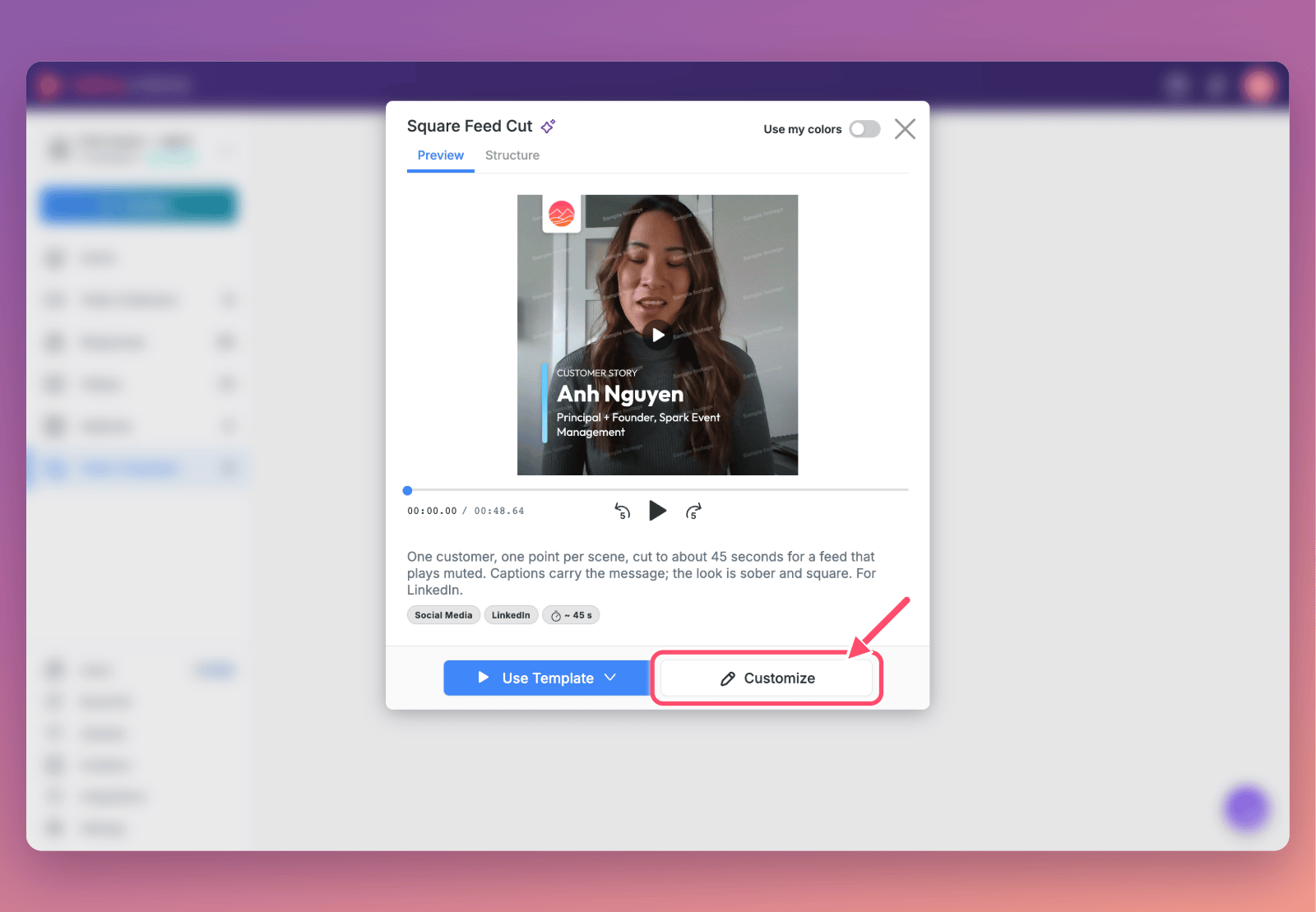
Make sure the template you want is under Your Templates on the Video Templates page. To add a library template there, open it and click Customize. This adds an editable copy to your templates.
- Open the response and ask Vera for the question you want, naming the template: "Use the 'LinkedIn Feed' template to make a video from question 2."
Vera makes a draft video of just that answer, in the template's look, trimmed the way the template's Instructions say.

To cover every question, ask Vera to "make a separate video for each question." She builds the first video, then asks you to prompt her again for each of the rest, so you end up with one video per question.
Which template to use
Any video template works. The question you name decides what's in the video, and the template decides how it's framed:
- Social templates make a lean clip of just the answer: Square Feed Cut for LinkedIn; Rapid Fire, Marquee, Newswire and Tilt for TikTok and Reels; and YouTube Shorts.
- Story templates, such as Customer Story Spotlight, add a title card, a question card and an ending logo scene around the answer.

Automatically, for every new response
A template can be written to use only one question. Connect it to a collector, and every new response arrives as a draft video of just that answer.
- On the Video Templates page, open a library template and click Customize, or open one of your own templates.
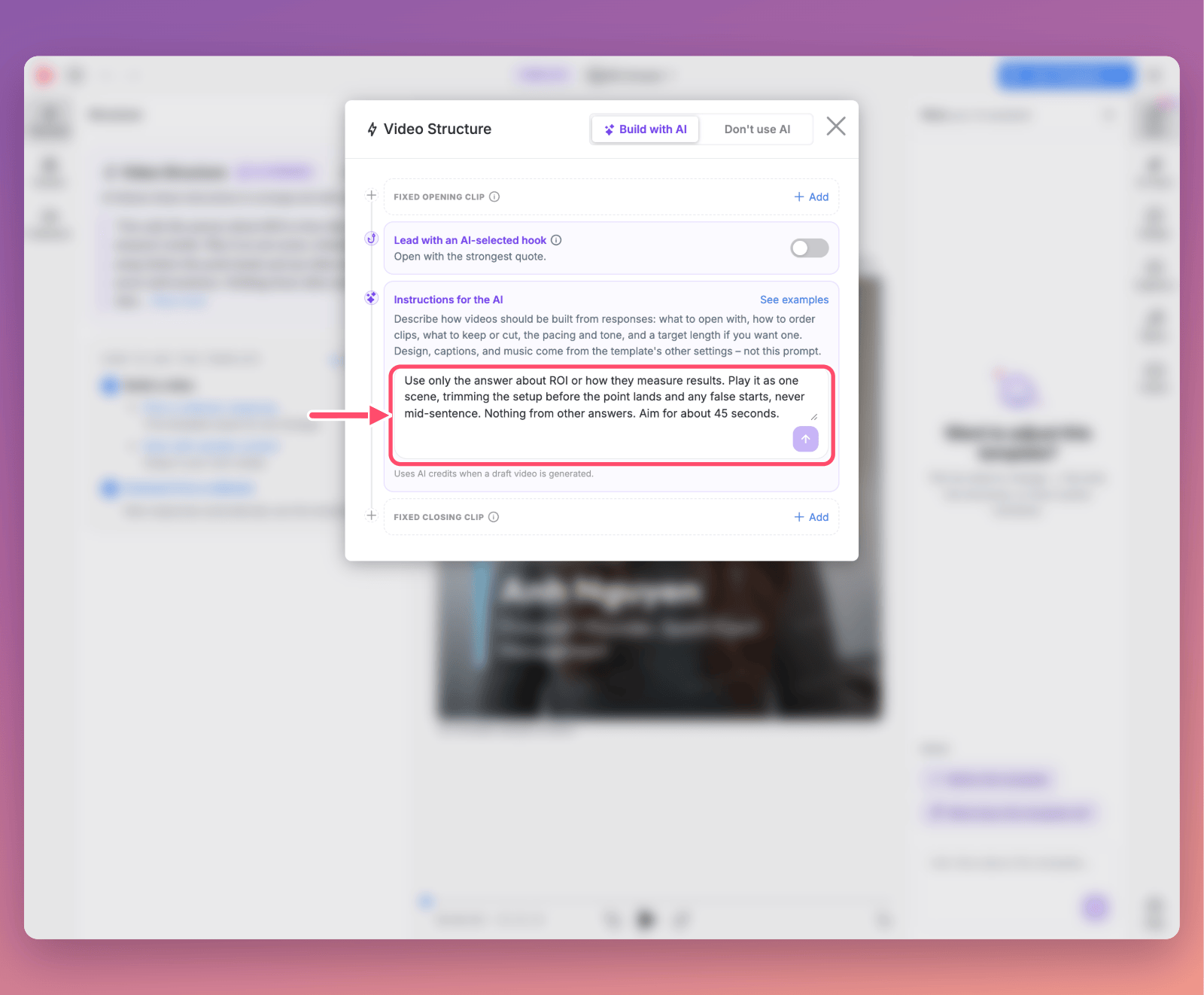
- Click Edit on its Video Structure and choose Build with AI.
-
Write Instructions that name the one question, for example: "Use only the answer about ROI or how they measure results. Play it as one scene, trimming the setup before the point lands and any false starts, never mid-sentence. Nothing from other answers. Aim for about 45 seconds."
- Open the collector's Settings and click Change on its Video template to choose this template.
Describe the question by its subject, not its number, since question numbers differ between collectors. One template covers one question, so for the other questions, ask Vera.
By hand, without AI
On the response page, click the wand (Create Draft) next to a single clip. You get a draft video of just that answer, in your workspace's default template look, with no AI editing. From there, you can trim it in the editor.
For more information see:
Video Templates: the Complete Guide
How to Create Videos Featuring Multiple People (Montages and Highlight Reels)
Still need help? Contact Support at support@vocalvideo.com