
Improving Audio Quality with Studio Sound
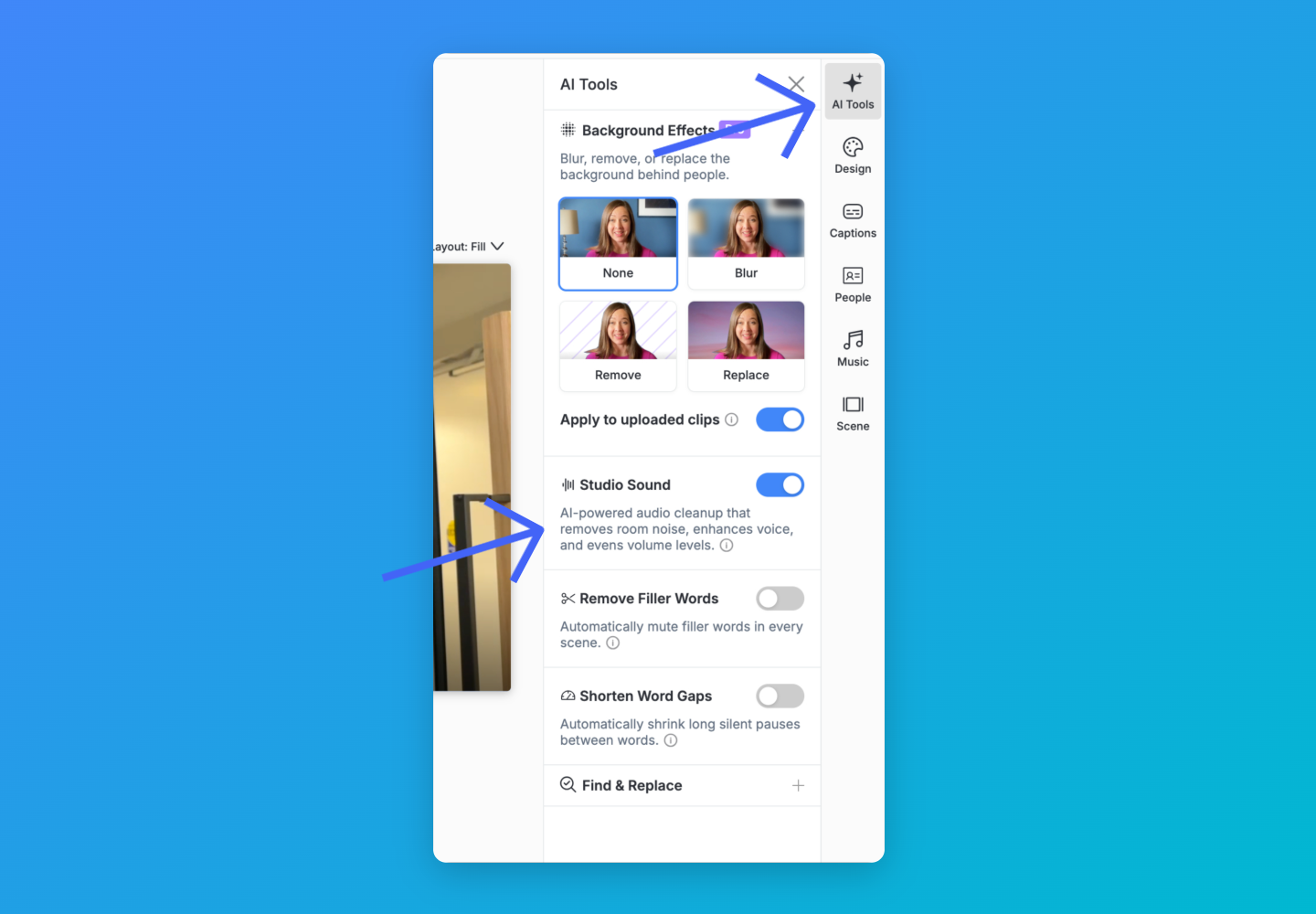
Studio Sound is Vocal Video's AI-powered audio cleanup. When it's on, it reduces background room noise, enhances voice clarity, and evens out volume levels — so your speakers sound polished and professional without any manual audio work.
In this article:
- Turning Studio Sound on or off
- Preview while you edit
- What Studio Sound does
- Turning Studio Sound off by default
- Studio Sound and AI credits
- Fine-tuning your audio
Turning Studio Sound on or off
Open a video in the Vocal Video editor and click AI Tools in the right-hand sidebar. Studio Sound has its own toggle, just below Background Effects. It's on by default for new videos.
Preview while you edit
You can hear Studio Sound while you edit — toggle it on and off to compare. When you publish, it's applied again at the highest quality on our render servers, so your published video sounds even better than the editor preview.
What Studio Sound does
- Reduces background noise — quiets room hum and ambient noise behind the speaker.
- Enhances voice clarity — shapes the audio so speech sounds warmer and more present.
- Evens out volume — automatically balances the loud and quiet moments, and levels volume between your different speakers and scenes, so everyone is easy to hear throughout your video.
Because Studio Sound balances volume for you, there's no need to manually adjust the volume of individual clips — leave your scenes at 100% and let Studio Sound do the work.
Turning Studio Sound off by default
Studio Sound's default lives in your default video template, not in Settings. Go to Video Templates in the left navigation, open the template marked as your default, click AI Tools in the right sidebar, and switch off Studio Sound. New videos built from that template start with it off, and you can still turn it on for any single video in the editor. Each collector uses your default template unless you connect it to a different one. See Video Templates: the Complete Guide.
Studio Sound and AI credits
Studio Sound is one of the AI effects, along with filler-word removal, shortened word gaps and background effects. Publishing a video with any AI effect on uses 10 AI credits per published minute.
- You're charged once. Only the first publish uses credits. Republishing after an edit, such as fixing a typo, is free.
- Stacking costs nothing extra. A video with Studio Sound, filler-word removal and background blur costs the same as one with Studio Sound alone.
- Previewing is free. Turning Studio Sound on and off while you edit doesn't use credits; only publishing does.
If you'd rather not use credits on a particular video, turn off its AI effects in the AI Tools panel before you publish.
What if I'm out of AI credits? Nothing is deleted, and you can keep editing. When you publish a video that uses AI effects, you'll see a message that you're out of AI credits, with the option to add credits (or upgrade) or click Publish Without AI Effects. That button turns off all of the video's AI effects — Studio Sound, filler-word removal, shortened word gaps and any background effect — and publishes it without using credits. Videos you've already published aren't affected, and republishing them stays free.
See AI Credits: What Uses Them and What Happens When You Run Out for your plan's allowance and how to get more.
Fine-tuning your audio
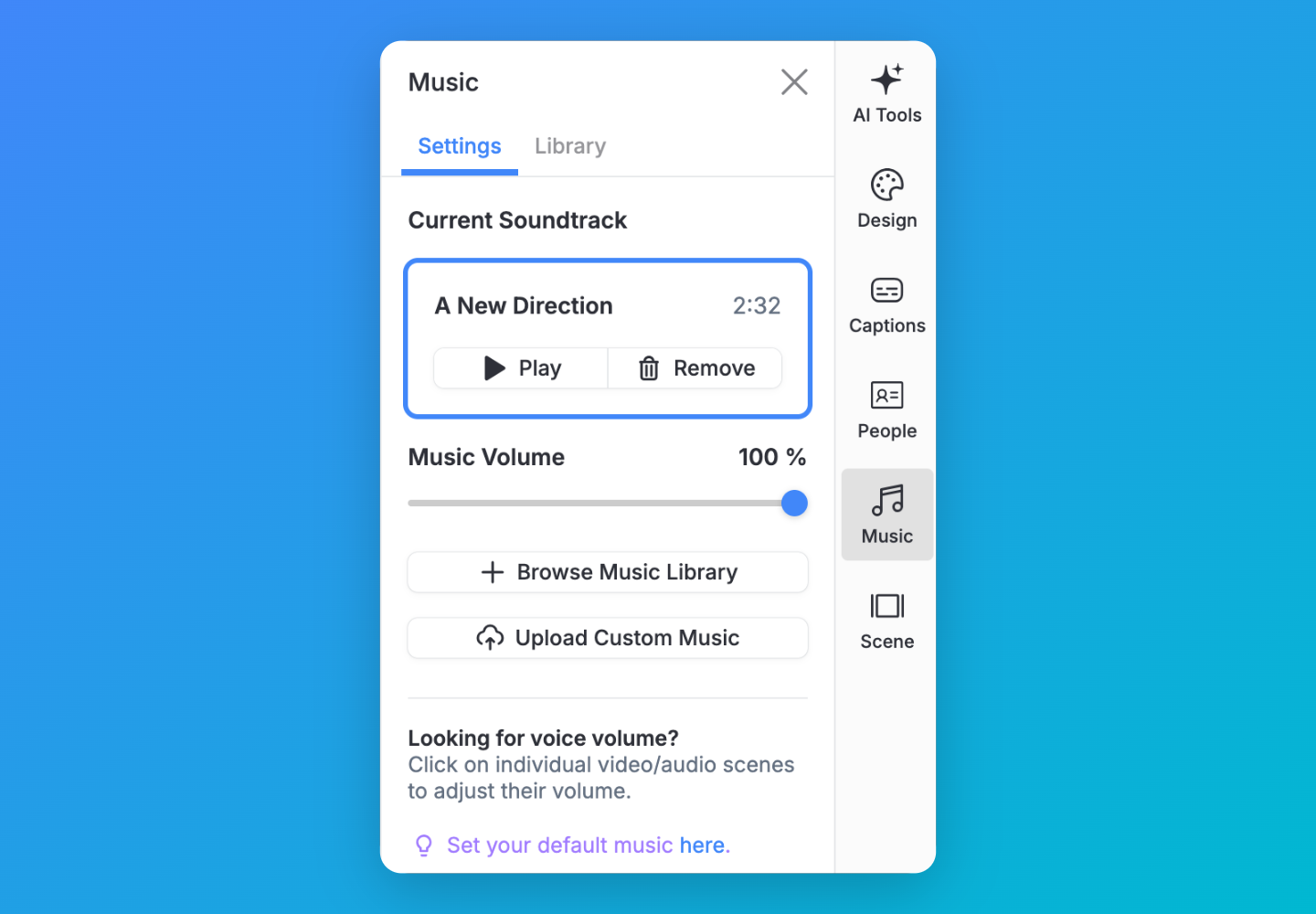
To adjust your music volume or the volume of an individual scene, see How to Adjust Audio Settings.
For more information see:
Still need help? Contact Support at support@vocalvideo.com